
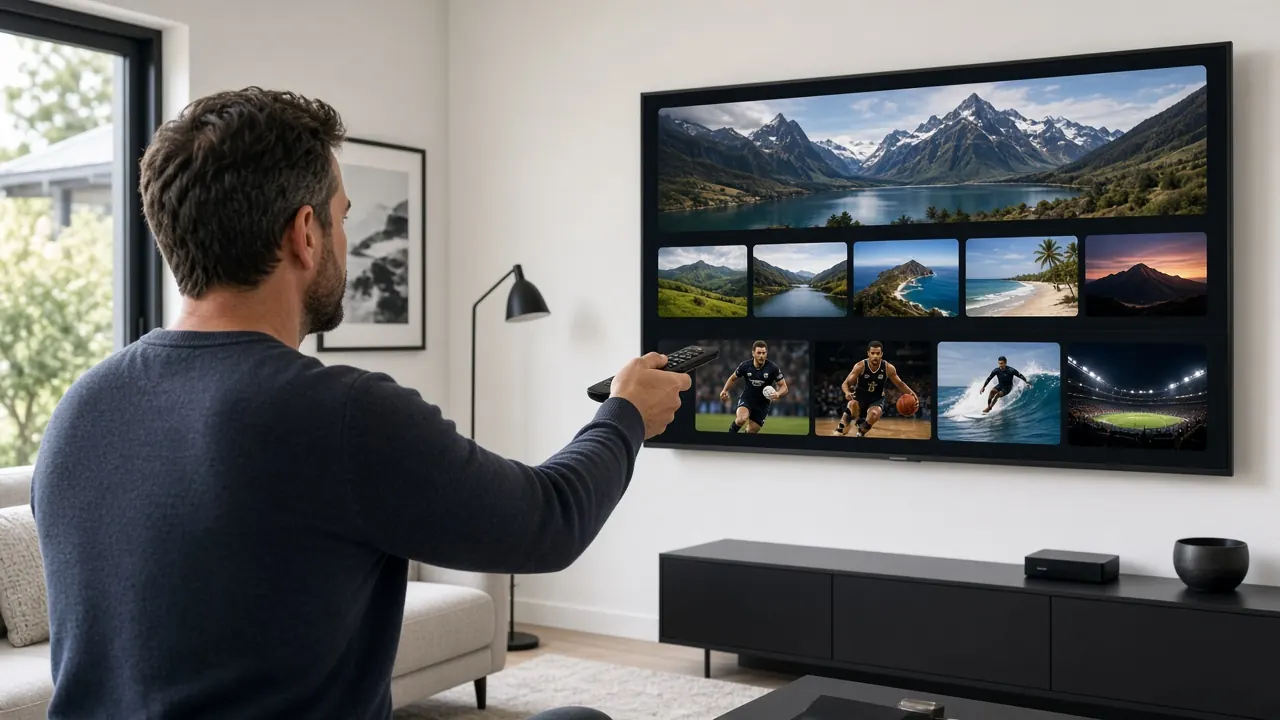
How to Set Up IPTV: Step-by-Step for Every Device
Here’s how to set up IPTV on any device in about 10 minutes: choose a plan, get your login on WhatsApp, install a player app and enter your details. Below are the general steps plus instructions for Smart TVs, streaming sticks, Android boxes, phones, MAG boxes, M3U playlists and Xtream Codes.
Before you start: what you’ll need
- A broadband connection. Around 10 Mbps per stream for HD, 15–25 Mbps for Full HD and 25 Mbps or more for 4K. Fibre is ideal; fixed wireless, 4G/5G home broadband and satellite broadband can work too.
- A compatible device. A Smart TV, streaming stick, Android TV box, phone, tablet, computer or MAG set-top box.
- Your IPTV NZ login. We send it on WhatsApp as soon as your payment is confirmed: an Xtream Codes login, an M3U playlist link or a MAG portal address.
- A few minutes. Most setups take 5 to 10 minutes from start to finish.
Not sure which login type you need? Tell us your device on WhatsApp and we’ll send the right one. You can also read M3U vs Xtream Codes vs MAG explained for the background.
Quick start: how to set up IPTV in 5 steps
These steps apply to every device. The device-specific sections below fill in the details.
Choose your plan
Pick 1, 3, 6 or 12 months. Every plan includes every channel and feature; longer plans cost less per month.
Message us on WhatsApp
Tap a WhatsApp button and tell us which device you’ll watch on. We confirm your order and send secure payment options.
Receive your login
Once payment is confirmed, we send your login on WhatsApp: an Xtream Codes login, an M3U playlist link or a MAG portal address — whichever suits your device.
Install a player app
Install a compatible IPTV player from your device’s app store. We recommend one that works well on your exact device. MAG boxes need no app.
Enter your details and watch
Add your login to the player, wait a minute while channels, movies and the TV guide load, then pick a channel and start watching.
How to set up IPTV on a Smart TV
Many Smart TVs can run an IPTV player straight from their built-in app store, with no extra hardware.
- Connect your TV to the internet (Ethernet is best; otherwise your 5 GHz Wi-Fi network).
- Open your TV’s app store and search for an IPTV player that supports Xtream Codes or M3U playlists. We’ll recommend one that works well on your TV’s system.
- Install and open the player. Some players show a device ID or activation code; if so, follow the on-screen steps to add your playlist.
- Choose Xtream Codes login (recommended) and enter the server address, username and password exactly as we sent them. Or choose M3U playlist and paste the playlist link.
- Wait while channels, movies and the TV guide load, then select a channel to start watching.
If your TV’s app store doesn’t offer a suitable player, or the app runs slowly, a streaming stick or Android TV box is an easy fix. See our IPTV box NZ guide.
How to set up IPTV on a streaming stick
- Plug the stick into a spare HDMI port, connect its power cable, and switch your TV to that input.
- Complete the stick’s on-screen setup and connect it to your Wi-Fi network.
- Search the stick’s app store for the IPTV player we recommend, then install it.
- If the player isn’t available in the store, your stick may let you allow apps from other sources in its developer settings. Only install apps from sources you trust, and ask us if you’re unsure.
- Open the player, choose Xtream Codes or M3U, and enter your login details.
- Let the content load, then add your most-watched channels to favourites.
Tip: streaming sticks sit right behind the TV, where Wi-Fi can be weak. If you see buffering, a short HDMI extension cable can move the stick out from behind the screen and improve reception.
How to set up IPTV on an Android TV box
- Connect the box to your TV with an HDMI cable, then plug it into power.
- Connect it to your router with an Ethernet cable for the most stable picture, or join your 5 GHz Wi-Fi network.
- Sign in to the box’s app store, then search for and install the IPTV player we recommend.
- Open the player and select Add playlist or Add user.
- Choose Xtream Codes, then enter a name for the playlist (for example, “IPTV NZ”), the server address, your username and your password.
- Save and wait a minute or two while live TV, movies, series and the TV guide download.
- Open the guide, pick a channel and press OK.
How to set up IPTV on a phone or tablet
- Open your phone or tablet’s app store and install an IPTV player that supports Xtream Codes or M3U.
- Open the app and choose to add a new playlist or login.
- Copy your login details from our WhatsApp message and paste them into the app. Copying avoids typing mistakes.
- Save, wait for the channel list to load, and start watching.
Phones and tablets are handy for watching around the house or while you travel. On mobile data, keep an eye on usage: an HD stream can use roughly 1.5 to 3 GB an hour, so Wi-Fi is the better option for long viewing sessions.
How to set up IPTV on a MAG box
MAG boxes don’t need an app. Instead, the box connects to a portal that we link to your box’s unique MAC address.
- Find your box’s MAC address. It’s printed on a sticker underneath the box and also shown under the system information menu. It looks like
00:1A:79:XX:XX:XX. - Send the MAC address to us on WhatsApp when you order. We’ll link it to your subscription and send you a portal address.
- On the box, open Settings, then System settings, then Servers, then Portals.
- Enter a name for Portal 1 (for example, “IPTV NZ”) and type the Portal 1 URL exactly as we sent it.
- Save, go back and choose Restart portal (or restart the box).
- The box loads the portal, and your channels and TV guide appear within a minute or two.
How to set up an M3U playlist
An M3U playlist is a single web link that lists every channel. It works with almost every IPTV player, which makes it a good fallback for devices that don’t support Xtream Codes.
- In your player, choose Add playlist, then M3U URL or Remote playlist.
- Paste the M3U link we sent you. Avoid typing it by hand, because these links are long and one wrong character stops them working.
- Give the playlist a name and save it.
- Go to the player’s EPG or TV guide settings and paste the separate EPG (XMLTV) link we sent, so programme information appears.
- Refresh the playlist and the guide. The guide can take a few minutes to fill the first time.
How to set up an Xtream Codes login
Xtream Codes is our recommended login type for most apps. Instead of a long playlist link, you enter three short details, and the app loads live TV, the TV guide, movies and series automatically.
- In your player, choose Add user, Login with Xtream Codes or Xtream Codes API.
- Enter any name you like for the playlist.
- Enter the server address (sometimes called host or URL) exactly as we sent it, including
http://and the port number if there is one, for examplehttp://server.example:8080. - Enter your username and password. They’re case-sensitive.
- Save. Live channels, movies, series and the guide load in a minute or two.
Troubleshooting common setup problems
| Problem | Likely cause | What to do |
|---|---|---|
| “Invalid login” or “authorisation failed” | A typo, extra space or wrong capital letter | Copy and paste the details from WhatsApp; check the server address includes http:// and the port |
| Channels load but no TV guide | EPG link missing or not refreshed (M3U) | Add the EPG link in settings and refresh; give it a few minutes |
| Guide times are wrong | Device time zone or guide offset | Set the device to New Zealand time; adjust the EPG offset in the player if needed |
| Picture freezes or buffers | Weak Wi-Fi or a busy connection | Use Ethernet or 5 GHz Wi-Fi; restart the device and router; close other streaming apps |
| MAG box shows “portal not found” | URL typed incorrectly or MAC not linked | Re-enter the portal URL; confirm your MAC address with us |
| App won’t install | Not available in your device’s store | Ask us for an alternative player for your device |
For persistent buffering, our guide to IPTV buffering causes and fixes goes deeper. Still stuck? Message us on WhatsApp with your device, the app you’re using and what’s on screen, and we’ll sort it out with you.
Tips for the best experience
- Build a favourites list so the channels you watch most are a click away.
- Turn on catch-up in your player’s settings if it’s switched off, so you can rewind programmes on supported channels. Learn more in what is EPG and catch-up?
- Keep your player updated for the latest fixes and features.
- Keep your login private. Sharing it can cause connection errors and interrupt your own viewing.
How to set up IPTV: common questions
What login details will I receive?
It depends on your device. For an Xtream Codes login you’ll get a server address, username and password. For M3U you’ll get a playlist link (and a TV guide link). For a MAG box you’ll get a portal address, linked to your box’s MAC address.
Why does my app say “invalid login”?
Usually it’s a typo. Check for extra spaces, capital letters and the exact server address (including http:// and the port number if one was given). Copying and pasting from WhatsApp avoids most mistakes. If it still fails, message us and we’ll check your account.
How do I add the TV guide (EPG)?
With an Xtream Codes login the guide loads automatically. With an M3U playlist, paste the EPG (XMLTV) link we send into your player’s EPG settings, then refresh. The guide can take a few minutes to fill the first time.
Can I set up IPTV on more than one device?
Each plan includes one connection — one stream playing at a time. You can install the app on as many of your devices as you like and watch on whichever is free. Want two or more screens playing at once? Ask us on WhatsApp about multi-connection options.
Will you help me set it up?
Yes. Tell us your device on WhatsApp and we’ll send step-by-step instructions for it, then stay with you until it’s working. Setup help is part of our 24/7 support.
Haven’t ordered yet? See IPTV NZ plans and prices or explore everything included on the IPTV NZ homepage.